Looking for a OneNote alternative? Read this first.
Read the notes out of an orphaned .one file.
Searching for a OneNote alternative? If Windows OneNote can open your file, use it first — it gives you more back than we can. OneNote Rescue is for the .one section OneNote itself won’t open.
Sometimes a OneNote section is left stranded — the notebook stopped syncing,
an old OneNote 2016 install is gone, or you’re just holding a loose
.one file and want to read what’s inside without an account.
OneNote Rescue is a small, honest
desktop tool that reads your own section file, read-only, and recovers its
page titles and note text as plain text, a readable
HTML notebook and a JSON report — all on your own computer.
- Your original
.oneis never changed — read-only - Your notes stay on your computer — no upload, no account
- Buy once — yours forever, no subscription
One of High Caliber’s local, read-only recovery tools. Independent — not affiliated with Microsoft or OneNote.
A modest, focused tool: it recovers your note text and page titles, and — for OneDrive-format sections — saves the embedded images as real files alongside them. Ink strokes aren’t converted to text. The scope is set out plainly below.
Runs on Windows 10 and 11 and on macOS. One purchase covers both.
.one section opened
Page titles
Note text → HTML & TXT
Honest recovery report
What it does — 30 seconds
A quick look at OneNote Rescue.
What the tool actually does: open an orphaned .one section file on your own computer, read back your page titles and note text, and leave the original untouched. Captions on — no sound needed.
OneNote Rescue — by High Caliber. This is an animated overview of what the tool does — an illustration, not a screen recording of the app. Your original files are only ever read.
The problem
The notebook’s gone, but the section file remains.
A .one file isn’t a zip or a simple document — it’s a structured
revision store, and once OneNote isn’t there to open it, your typed notes can
feel locked away. OneNote Rescue reads the real structure directly and
lifts the readable text out, so an orphaned section isn’t a dead end. It’s a
small, focused tool for a specific job — reading your own notes back — done
honestly, with no account and nothing sent anywhere.
If a Windows OneNote will open the file, use it — it gives more back than we can; this is for the section nothing will open.
Reads onlyYour source
.one is copied to a temp location and only the copy is read; the original’s bytes and timestamp never change.Your notes are never uploadedThe recovery engine contains no networking code at all — that ban is enforced in the build, not just promised. The app’s only online action is checking your licence key with Lemon Squeezy. Your
.one file and everything recovered from it stay on your machine, and there is no account.Open exportsNotes come out as plain text, a readable HTML notebook and a JSON report — all HTML-escaped so nothing from a note can execute.
Free and manual options included, not just ours —
read the OneNote file guides:
how to open a .one file when you don’t have OneNote ·
OneNote for Windows 10 has retired — what to do with the notes you still have ·
“OneNote cannot open the requested package file” ·
where your OneNote files are stored on disk ·
How to export the notes out of a OneNote .one file ·
.one, .onetoc2 and .onepkg: what each OneNote file actually is ·
Opening a local OneNote .one file on a Mac ·
“This section was originally created in an older version of OneNote”.
What it recovers
What OneNote Rescue gets back for you.
Here is the real, modest scope of the tool as built. It reads
both shapes a .one comes in —
the classic OneNote 2016 / desktop revision store and the OneDrive-format
package that synced sections use — and pulls out the readable text. Where
something can’t be recovered, it is named as a limit, never faked.
Honest scope — stated up front: the reliable output is your note text and page titles. Ink (handwriting) strokes aren’t converted to text, and aren’t counted or listed. Rich formatting (bold, colour, fonts) and the exact page hierarchy are simplified into readable plain text. Embedded files come out only from OneDrive-format sections, and only where the file type is recognised; anything unrecognised is listed as present and not extracted, never guessed into a file. How much text a section yields depends entirely on the section: a mostly-typed section can return pages of notes, while an image-heavy one may hold almost no readable text at all. If your notebook is mostly typed notes, that is what this reads back; if it is mostly drawings or scans, it recovers the text around them.
Your files stay yours
Comfort and control, built in from the start.
These aren’t nice-to-haves — they’re the point of a recovery tool. This is how OneNote Rescue behaves, and how it’s built to behave.
Read-only on your originalThe source
.one is copied to a temp directory and only the copy is read. No files are ever written next to the original, and its bytes and mtime are untouched.Nothing uploadedThe tool has no HTTP stack at all; networking code is banned in the build. Recovery is entirely local — no upload, no account.
No lock-in, no crackingExports are open formats — plain text, HTML, JSON, and any extracted files in their own original format. It works only on notes you own. Nothing is ever decrypted or bypassed: in a classic desktop revision store, password-protected content is detected and flagged; in a OneDrive-format section those markers are not detected at all this pass, and the report says so.
Compatibility & scope
What’s in scope — stated plainly.
We separate what the tool recovers from what it only catalogues, so there are no surprises. Anything out of scope is reported honestly, never faked.
Supported operating systems: Windows 10 and 11 (64-bit), and macOS 10.15 or later. One purchase covers both, so you can recover the files where they already are — no copying them to another machine first.
Recovered — .one section files
.one — classic OneNote 2016 / desktop revision store
.one — OneDrive-format package (synced / downloaded sections)
.onetoc2 — table-of-contents files (parsed; a TOC carries no page text, and the tool reports that rather than inventing pages)
Page & section titles
Note text → plain text + readable HTML notebook + JSON report
Embedded images and other recognised embedded files — OneDrive-format sections, saved as real files with a SHA-256 each
Read-only flags, page count and recovered character count reported as measured
Catalogued — not extracted this pass
Embedded images & files in a classic desktop revision store — not recovered, and not counted or listed either Ink / handwriting strokes — not converted to text, and not counted or listed Any embedded object whose file type is not recognised — listed with a reason, never guessed into a file Rich formatting & exact page hierarchy — simplified to readable text Password-protected content — flagged in the classic revision store; not detected in the OneDrive-format container this pass. Nothing is ever decrypted in either OneNote-for-Windows-10 (UWP) cache — this tool targets.one section files, not the UWP cache
A modest tool, honestly scoped: OneNote itself still exports your notebooks, so this is
for the specific case of an orphaned or unopenable .one section
where you just want your typed notes back. It reads that text reliably; it does not
rebuild the full visual notebook. That’s deliberate — we’d rather be clear about what
it does than oversell it.
Both OneNote formats, handled
It reads the two shapes a .one comes in.
Classic revision store and OneDrive package — both read
Accented and non-English characters come back as clean UTF-8; how much text a section holds is what you get
OneNote Rescue reads both the classic OneNote 2016 / desktop revision store and the
OneDrive-format package that synced sections use. It recovers the readable note text a section holds and extracts recognised embedded files from OneDrive-format sections. The spread is worth knowing: a text-heavy section can yield pages of notes, an image-heavy one may yield very little, and a .onetoc2 table-of-contents file holds no page text at all — in each case the tool states plainly what it found rather than reporting a recovery it did not make. Your original files are
read-only throughout, their bytes untouched.
See it work on your own files first
Check what’s recoverable before you pay a penny.
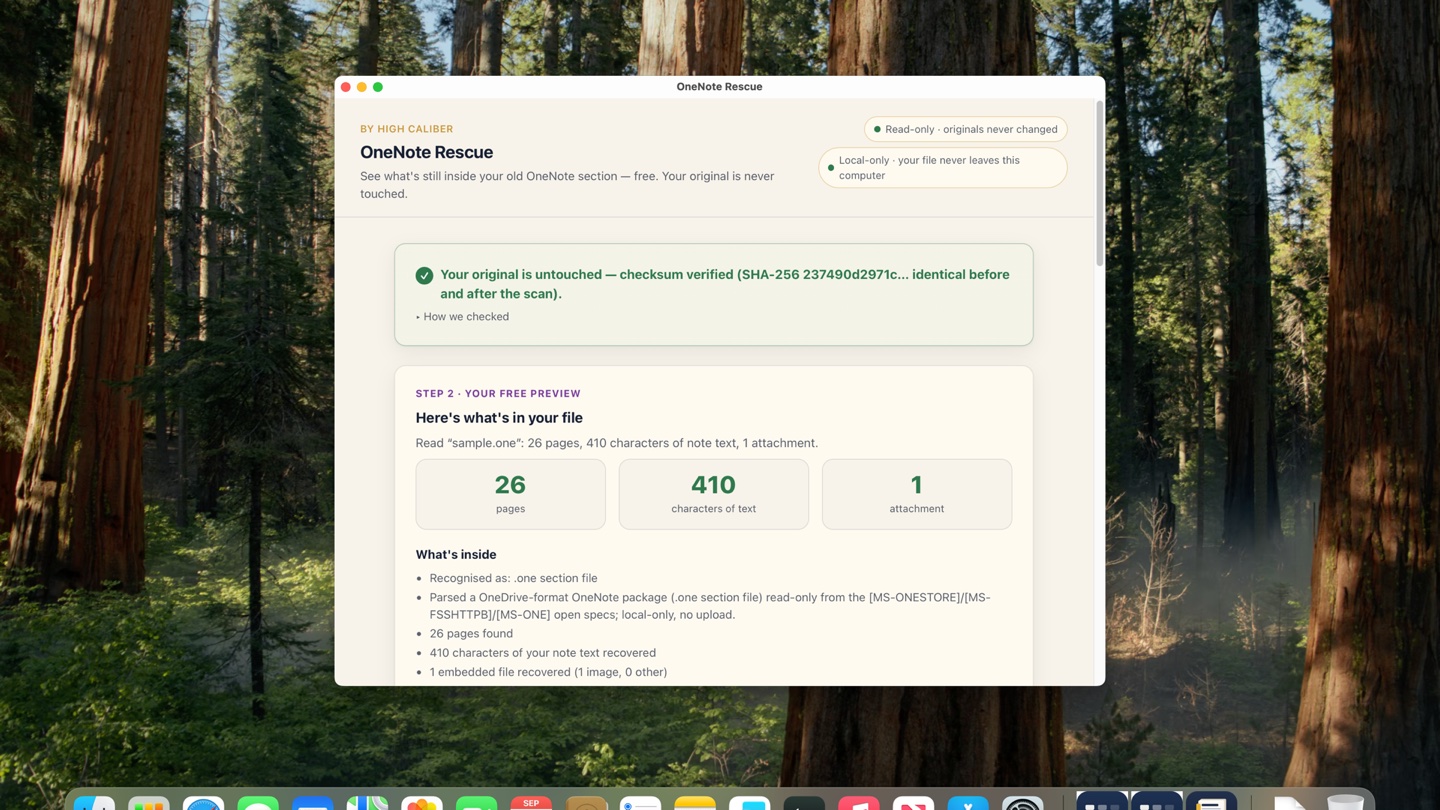
Download OneNote Rescue and open one of your own .one section files. Without a licence it runs a
free preview: it reads the section and shows you the page titles and note text it can recover, on screen, and confirms your original was opened
read-only and left unchanged. Saving that out to files is what the licence
unlocks — everything you can see on screen stays free.
So you can find out whether it handles your files before deciding — and if it doesn’t do what this page says for your files, there’s a 14-day refund.
Download the free preview
Buy a licence — £29
Windows 10 and 11 (64-bit) · macOS 10.15 or later on Intel and Apple silicon · code-signed, and notarised by Apple on the Mac
Pricing
£29 one-time. Yours to keep.
OneNote Rescue is a one-time purchase, in keeping with every High Caliber recovery tool — pay once, yours to keep, no subscription, ever, for reading your own files. Licence for one person on up to three computers — for example your Mac and your PC, or work and home. Email support@highcaliberapplications.com to move it. It is a deliberately modest, text-focused tool, and the price says so.
A morning retyping notes from a screen, or £29 once for the text as files.
OneNote Rescue
£29 one-time · three computers
Recover your page titles and note text from your own orphaned .one / .onetoc2 section files — to plain text, a readable HTML notebook and a JSON report, with an honest account of what was and was not readable on every run. In a OneDrive-format section, embedded images are saved out as real files too. Windows and Mac. Buy once, yours forever. (Ink strokes aren’t converted to text; in a classic desktop revision store, embedded files aren’t recovered rather than extracted.)
14-day money-back guarantee: if it doesn’t do what this page says for your files, email support@highcaliberapplications.com within 14 days and we’ll refund you in full. Prefer to check first? Run the free preview on your own file before you buy.
FAQ
Straight answers.
Can I buy and download it now?
Yes. OneNote Rescue is on sale at £29 as a one-time purchase, and the Windows and macOS apps are both available to download straight away. You can run the free preview on one of your own files first — it shows you on screen what it can recover, and saving that out to files is what the licence unlocks.
Which files will it open?
OneNote .one section files — both the classic OneNote 2016 / desktop revision store and the OneDrive-format package that synced sections use — plus .onetoc2 table-of-contents files. It targets standalone section files; the OneNote-for-Windows-10 (UWP) app keeps notes in a local cache rather than loose .one files, which is a different case.
Which operating system does it run on?
Both. OneNote Rescue runs on Windows 10 and 11 (64-bit) and on macOS 10.15 or later. That matters here, because most stranded .one files sit on Windows machines — so you can recover them where they already are, with no copying to another computer first. One purchase covers both: the Mac download and the Windows download are both on your order page, and the same licence key activates both.
What exactly will I get out?
Your page and section titles and your note text, decoded to clean UTF-8, saved as a plain-text file and a readable per-page HTML notebook, plus a JSON report of what was found — page count, recovered character count, and, in a OneDrive-format section, any embedded object it found but couldn’t recognise, with the reason it wasn’t written out. From a OneDrive-format section it also writes out the embedded images, and any other embedded file whose type it recognises by signature, as real files next to the notebook with a SHA-256 each. From a classic desktop revision store, embedded files aren’t recovered, and aren’t counted or listed either, this pass. Ink strokes aren’t converted to text, and rich formatting is simplified to readable text.
How much of my notebook will actually come back?
Whatever readable text the section holds — no more, and nothing invented to fill the gap. A text-heavy section can return thousands of characters; an image-heavy one may return almost none; and a .onetoc2 table-of-contents file holds no page text at all — in every case the tool tells you plainly what it found. A section that is mostly drawings or scans will return the text around them, not the drawings.
Will it change my original file?
No. To stay strictly read-only, the source .one is copied to a temp directory and only the copy is read. No files are ever written next to the original; its bytes and timestamp are untouched.
Does it upload my notes anywhere?
No. It’s a local desktop tool: your .one file is read on your own computer and everything recovered is written beside it. The recovery engine contains no networking code — the build bans networking crates outright, so that is enforced rather than promised. To be precise about the one exception: the app itself does go online for a single purpose, to check the licence key you paste in with Lemon Squeezy. Your notes are never part of that, there is no account, and there is no other upload path.
What about a password-protected section?
Nothing is ever decrypted or bypassed, and no password is ever tried — this works only on notes you own. Be aware of one limit: password-protection markers are detected in the classic desktop revision store, where the tool flags them plainly and still recovers the readable pages around them. In a OneDrive-format section those markers are not detected in this pass, so the report will not raise the flag there. Either way, protected content is never opened.
Is this a Microsoft product?
No. OneNote Rescue is independent and not affiliated with, endorsed by, or connected to Microsoft Corporation. “Microsoft OneNote” and “OneNote” are trademarks of their respective owner, used here only to describe which files the tool reads. It was built clean-room from Microsoft’s own published open specifications, and works only on your own files.
Independent — not affiliated with Microsoft. OneNote Rescue is an independent recovery tool. It is not affiliated with, endorsed by, sponsored by, or connected to Microsoft Corporation. “Microsoft OneNote” and “OneNote” are trademarks of their respective owner, referenced here solely to describe the file format this tool reads (nominative use). OneNote Rescue works only with files you already own and have the right to access; it performs no DRM removal, password cracking, or circumvention of technical protection. All product and file-format names are the property of their respective owners.